This tutorial walks you through setting up Meilisearch Cloud, creating a project and an index, adding documents to it, and performing your first search with the default web interface. You need a Meilisearch Cloud account to follow along. If you don’t have one, register for a 14-day free trial account at https://cloud.meilisearch.com/register.Documentation Index
Fetch the complete documentation index at: https://meilisearch-6b28dec2-add-federated-search-demo.mintlify.app/llms.txt
Use this file to discover all available pages before exploring further.
Creating a project
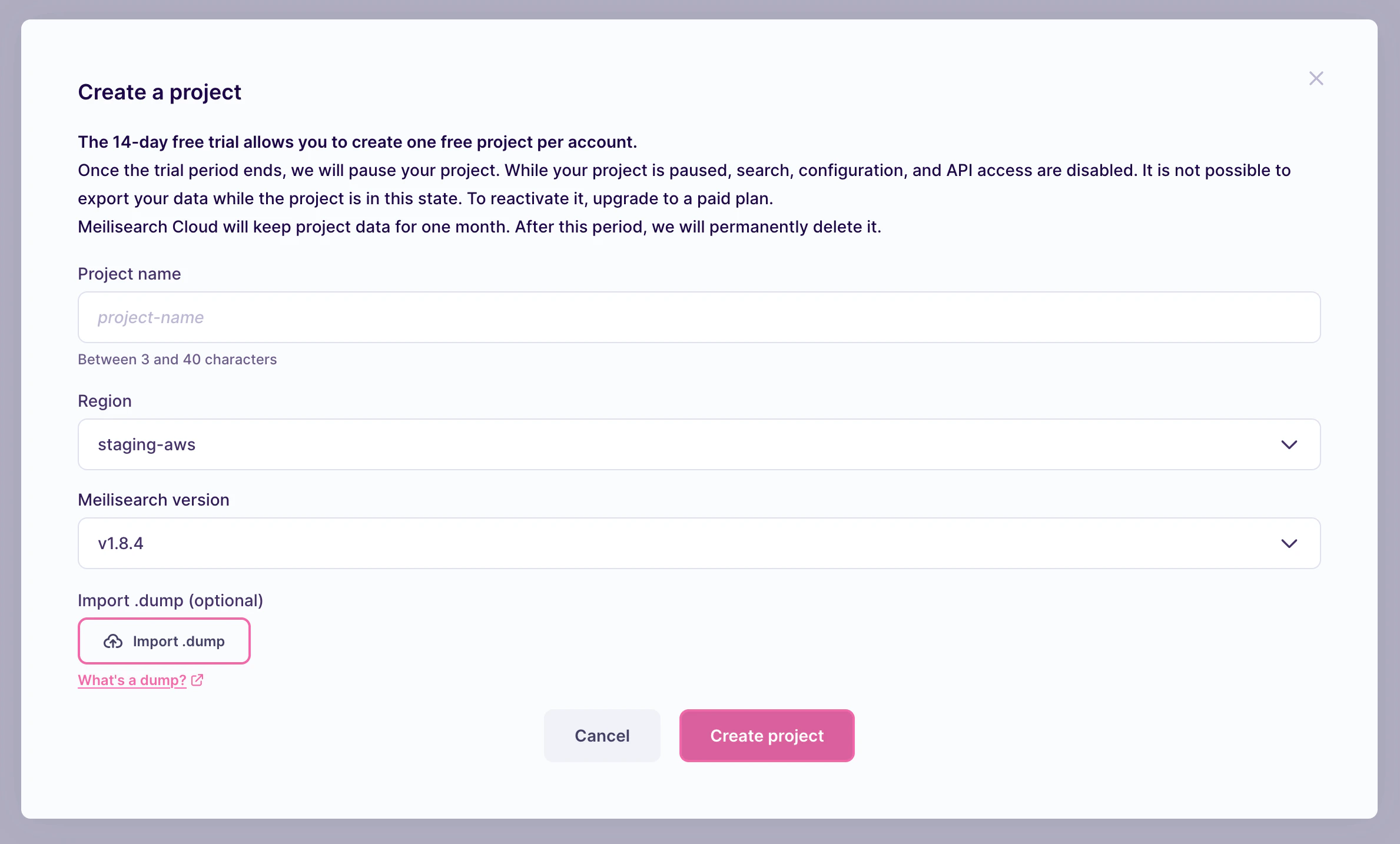
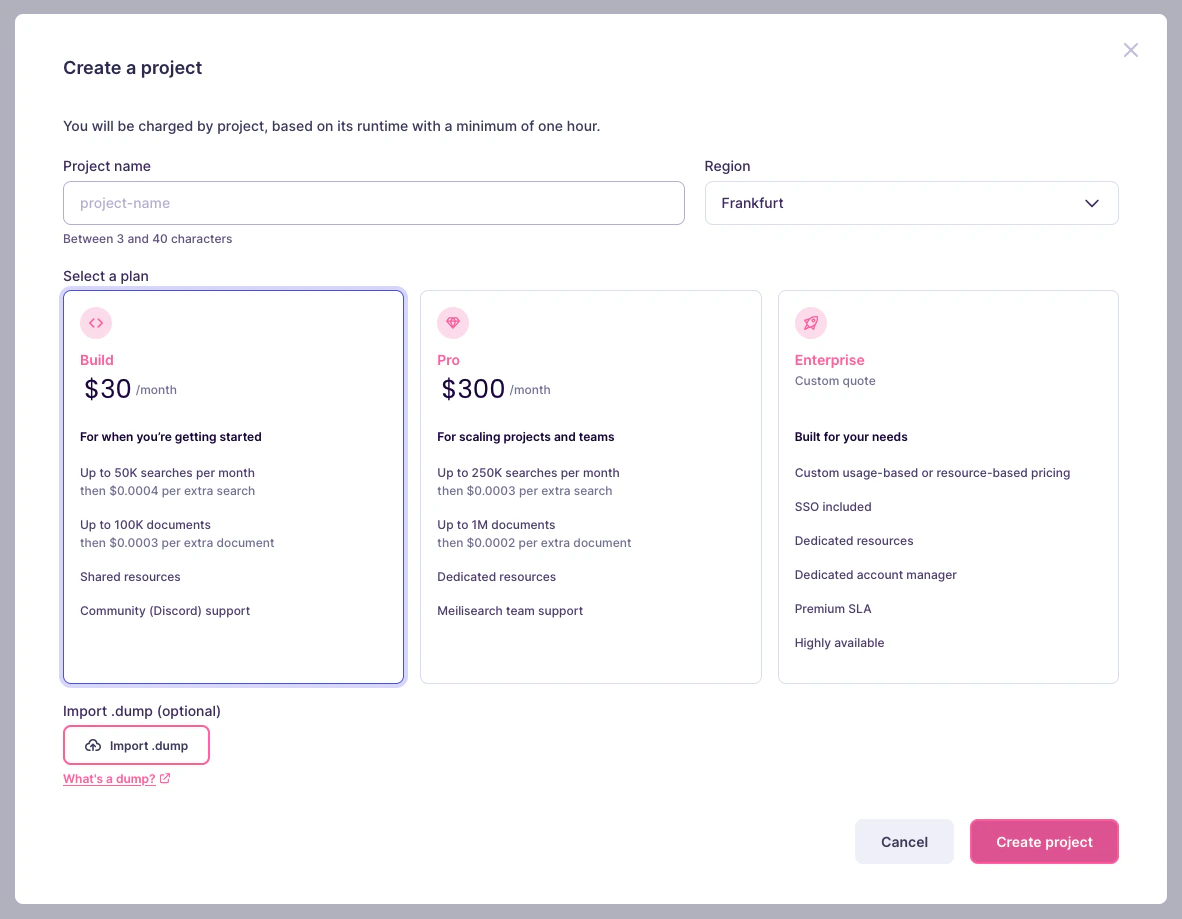
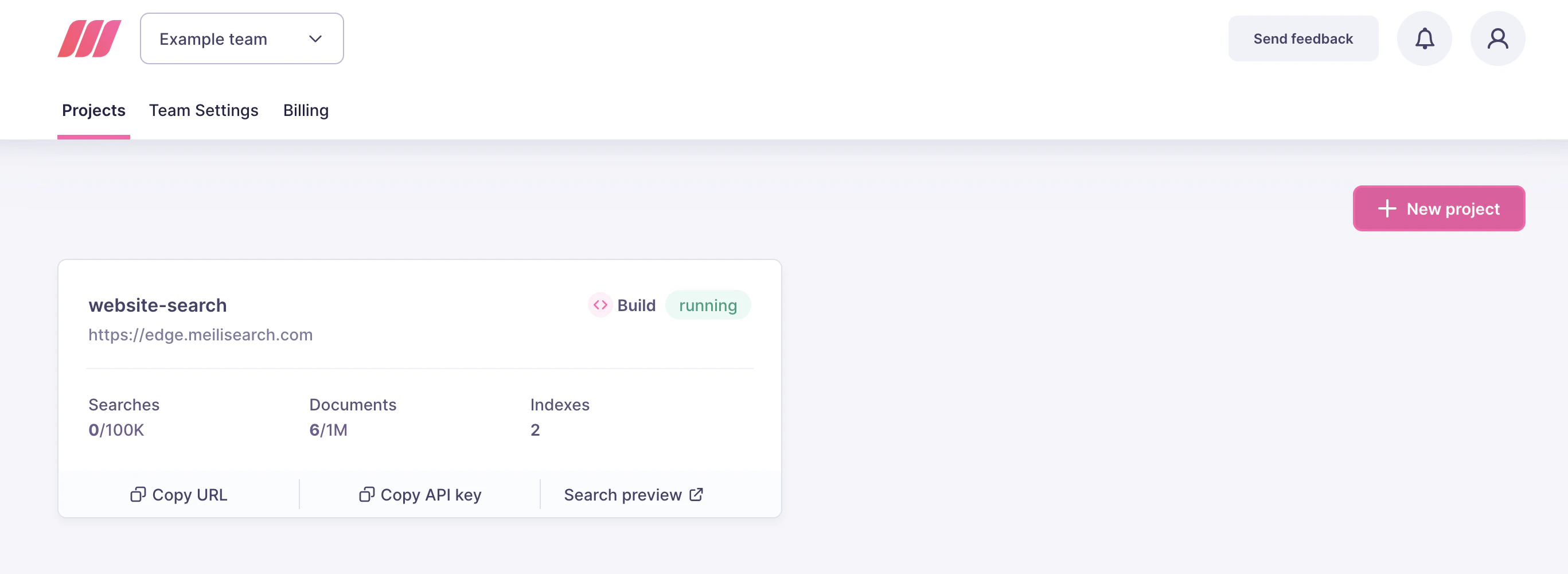
To use Meilisearch Cloud, you must first create a project. Projects act as containers for indexes, tasks, billing, and other information related to Meilisearch Cloud. Click the “New project” button on the top menu. If you have a free trial account and this is your first project, the button will read “Start free trial” instead:
meilisearch-quick-start and select the region closest to you, then click on “Create project”:
Creating an index and adding documents
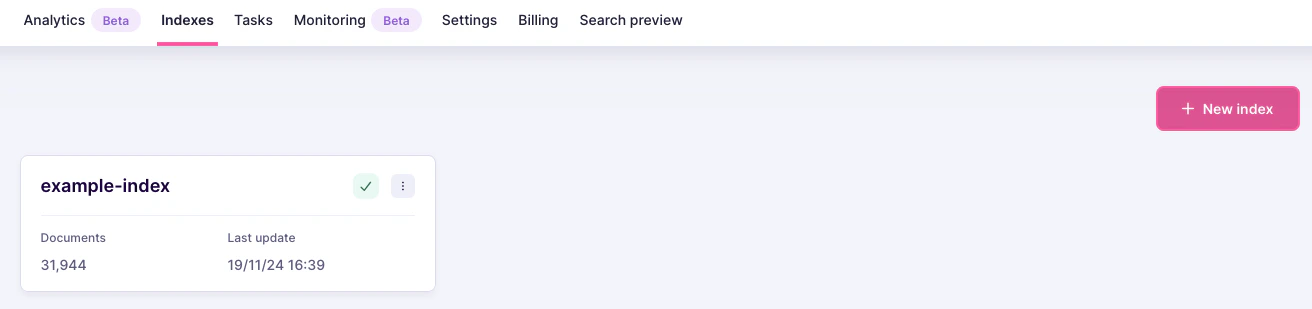
After creating your project, you must index the data you want to search. Meilisearch stores and processes data you add to it in indexes. A single project may contain multiple indexes. First, click on the indexes tab in the project page menu: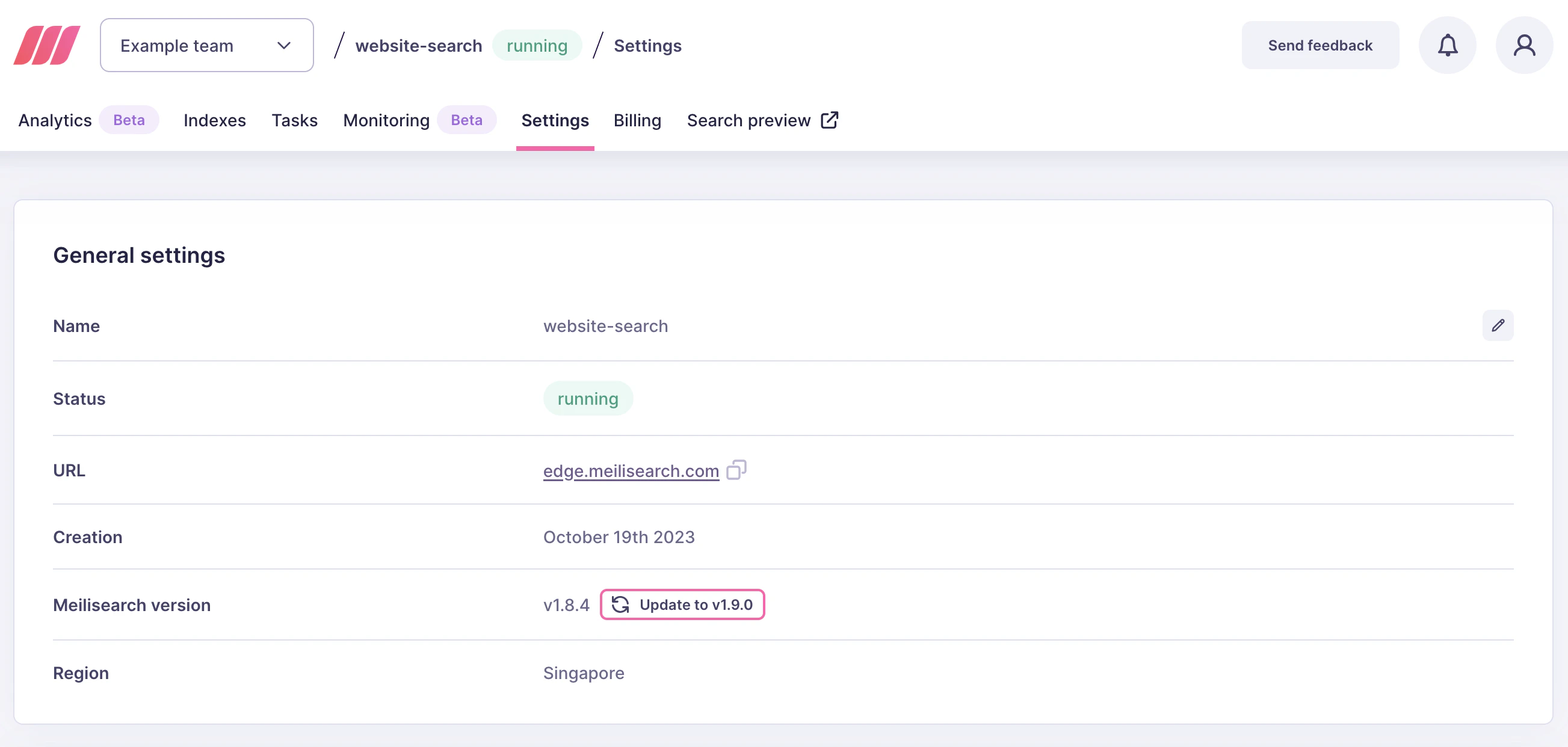

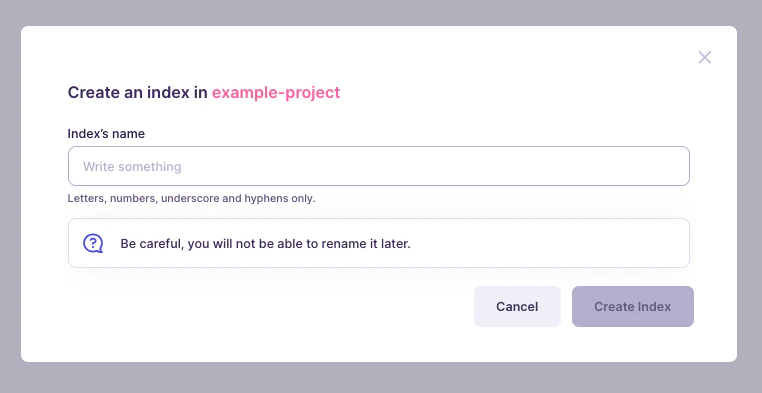
movies in the name field and click on “Create Index”:
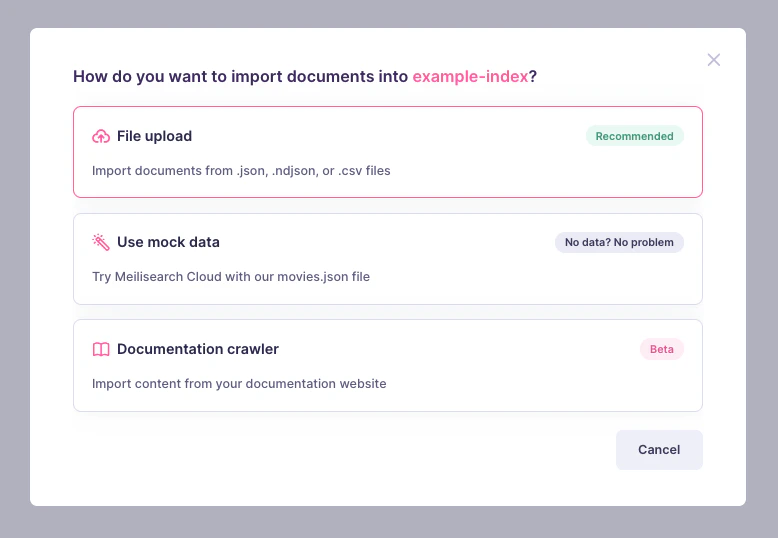
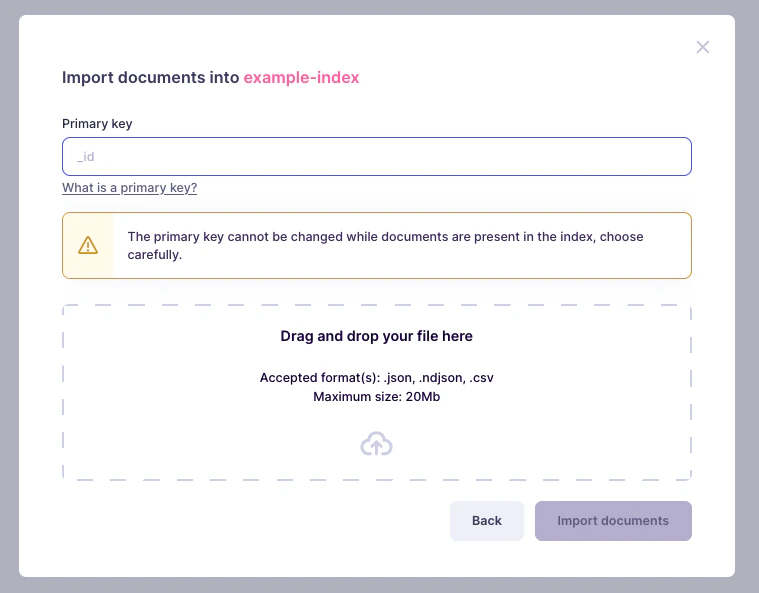

Searching
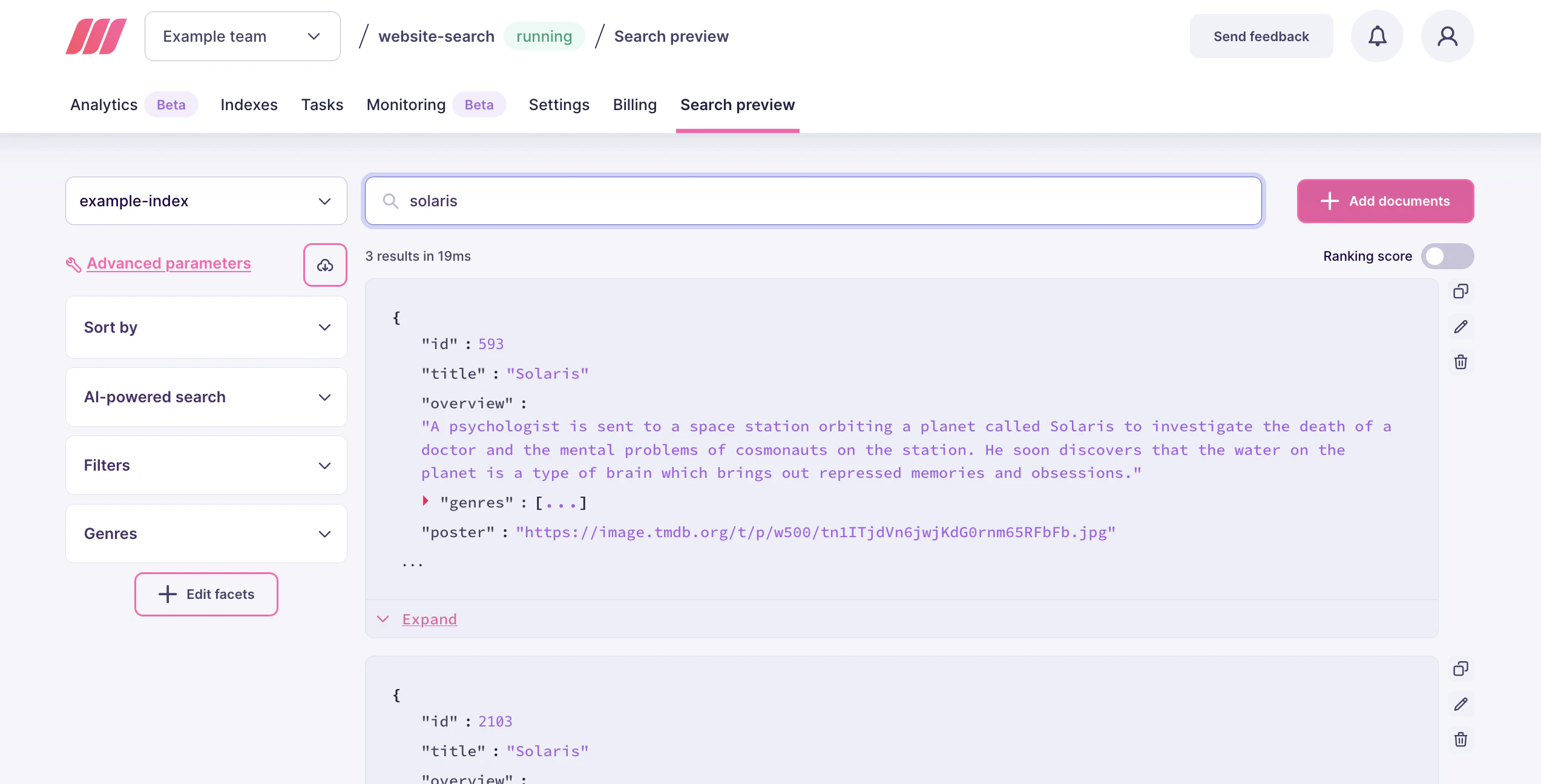
With all data uploaded and processed, the last step is to run a few test searches to confirm Meilisearch is running as expected. Click on the project name on the breadcrumb menu to return to the project overview: